 Tidily
iPhone Storage Full? Clear These 9 Things First (Without Losing Your Photos)
Tested on iOS 27, October 2026
How we test: we follow every step on an iPhone simulator running iOS 27 with sample photos, and on a real iPhone. Menu names can differ on other iOS versions.
Your iPhone says Storage Full, usually right when you need room for an iOS update, a film for a flight or a new app. This article puts the biggest wins first, so you can stop as soon as you have enough space.
Everything here is for iPhone, and we checked these steps on an iPhone in October 2026. Apple moves menus around between versions, so if something looks different on your phone, check which iOS you're on in Settings > General > About.
The fastest ways to free up iPhone space
- Delete or shrink your largest videos.
- Clear duplicates and similar shots.
- Remove large Messages and WhatsApp attachments.
- Offload apps you don't use.
- Empty Recently Deleted so the space shows up.
Start here: how much space do you need?
- Open Settings > General > iPhone Storage.
- Look at the bar at the top. It shows what's used and how much is free.
- Look at the list below it. Apps are sorted by how much space they use, and Photos is often near the top.
If the update or download tells you how much space it needs, that's your target. Work down the list below until you reach it.
1. Your biggest videos
Videos are usually the largest files on a phone. Clearing a few long ones is often the quickest way to make room. This is the best place to start, and also the most awkward one with Apple's own tools.
Why it's hard in Photos: the Photos app can't sort videos by file size. You can open the Videos album and see how long each clip is, but length is only a rough clue. A short 4K clip can be bigger than a longer one filmed at a lower setting. Then you delete them one at a time.
The manual way:
- Open Photos, tap Collections, then scroll to Media Types and tap Videos.
- Look for long videos you no longer need: concerts filmed from the crowd, accidental recordings, clips you've already shared.
- Tap Select, tap the ones to remove, then tap the bin icon.
Where our app helps: this is the step we built Tidily for, so we'll say it plainly: it's our app. Tidily lists your videos biggest first. Everything starts selected, so you only untick the ones to keep. If you'd rather keep a video, it can save a smaller copy instead of deleting it. It all runs on your phone, and nothing is uploaded (see our privacy policy). See how Tidily sorts and shrinks large videos.
For more ways to track down large videos, see how to find the biggest videos on your iPhone (3 ways).
Shrink instead of deleting
Some videos you want to keep. The Photos app can't make a video or photo file smaller in place, so your only built-in choices are to keep the full file or delete it.
An app can save a smaller copy instead: a video re-encoded to HEVC, often at a lower resolution, or a large photo saved again as HEIC at about 12 MP. Newer iPhones can take 24 MP and 48 MP photos, and 12 MP is plenty for a phone screen and normal prints. The app mentioned above does both, keeps the date, place and albums, and iOS asks you before the original is removed.
2. Duplicates and similar shots
iOS has a built-in Duplicates album that finds copies of the same photo.
- Open Photos and tap Collections.
- Scroll to Utilities and tap Duplicates.
- Check each pair, then tap Merge to keep one copy.
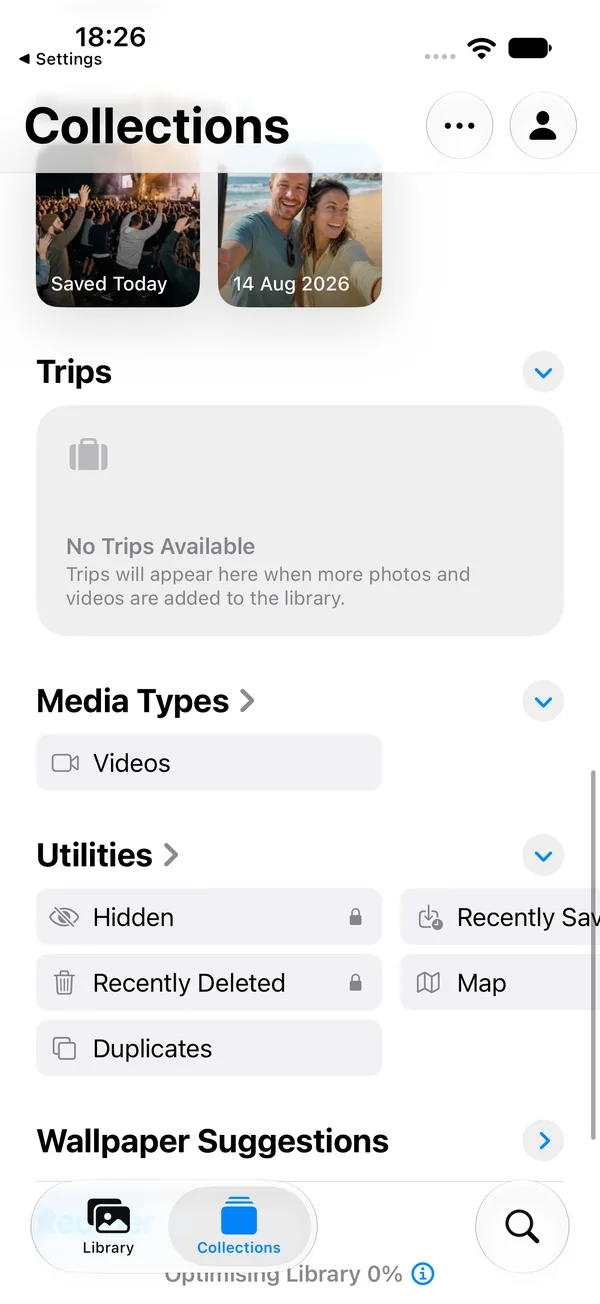
What it misses: Duplicates only catches exact copies. It won't touch the eight nearly identical shots you took of the same sunset, and those usually take more space. For those, you have to open each burst of similar photos, pick the best, and delete the rest by hand.
Tidily has a Similar shots group for this. In each set it keeps one photo, chosen in this order: your favourite, then one you edited, then one with eyes open, then the highest quality score. The rest are selected for you to review.
3. Screenshots and screen recordings
Screenshots pile up: boarding passes, codes, chats, things you meant to read later. Screen recordings are videos, so they can be large.
- In Photos, tap Collections, then go to Media Types.
- Open Screenshots, then Screen Recordings.
- Tap Select, pick the old ones, and delete them.
4. Live Photos
A Live Photo saves a short video clip along with the still photo, so it takes more space than a plain photo.
- In Photos, go to Collections > Media Types > Live Photos to see them all.
- Delete the ones you don't need.
- To stop new photos being Live, tap the Live Photos button in the Camera app.
Why it's slow: to keep a photo but drop its Live part in Photos, you open each photo, tap Edit and tap the Live button to turn it off, one at a time.
5. WhatsApp photos and videos
If WhatsApp's "Save to Photos" setting is on, every photo and video people send you is also saved in your photo library. WhatsApp keeps its own copy too.
- In WhatsApp, tap You, then Storage and Data > Free Up Storage. Clear the chats and files you don't need.
- To stop new media landing in Photos, turn off the Save to Photos toggle in WhatsApp's chat settings (tap You, then Chats).
- In Photos, look for a WhatsApp album and clear what you don't need.
6. Messages attachments
Photos, videos and voice notes sent in Messages are stored inside the Messages app, separate from your photo library.
- Go to Settings > General > iPhone Storage and tap Messages to see how much space it uses.
- iOS doesn't sort Messages attachments by size there, so the big ones are hard to find by hand.
The quicker fix is to have your iPhone remove old messages automatically. Go to Settings > Apps > Messages > Keep Messages. The choices are 30 Days, 1 Year and Forever. Choose 1 Year or 30 Days. This permanently deletes older messages and their attachments, so only do it if you're sure.
7. Apps you don't use
Offloading removes an app but keeps its documents and data. If you reinstall it later, it picks up where you left off.
- Go to Settings > Apps > App Store.
- Turn on Offload Unused Apps. Your iPhone then offloads apps you don't use when space runs low.
To remove an app you never use, go to Settings > General > iPhone Storage, tap the app, then tap Delete App. The list shows the biggest apps first. Deleting removes the app's data too.
8. Streaming, music and podcast downloads
Films and series downloaded for a trip, offline playlists and old podcast episodes can take a lot of space. Open each app's downloads list and remove what you've already watched or heard. The iPhone Storage list in Settings shows which of these apps is using the most space, so start there.
9. Safari website data
Safari stores website data and history. Clearing it can free some space, though usually less than the steps above.
- Go to Settings > Apps > Safari.
- Tap Clear History and Website Data.
This signs you out of websites, so have your passwords ready.
Last step: empty Recently Deleted
This is the step people miss. Photos and videos you delete go to Recently Deleted and stay there for 30 days. Until then they still use space, so your free space won't go up yet.
- Open the Photos app.
- Tap Collections.
- Scroll down to Utilities and tap Recently Deleted. Your iPhone may ask for Face ID or your passcode, because this album is locked.
- Tap Select.
- Tap the ... button, then tap Delete All and confirm.
Then go back to Settings > General > iPhone Storage to see the new free space. If the number hasn't changed, see why iPhone storage doesn't go up after deleting photos.
Keep it from filling up again
Two camera settings decide how much space new photos and videos take. Camera has its own entry in the main Settings list.
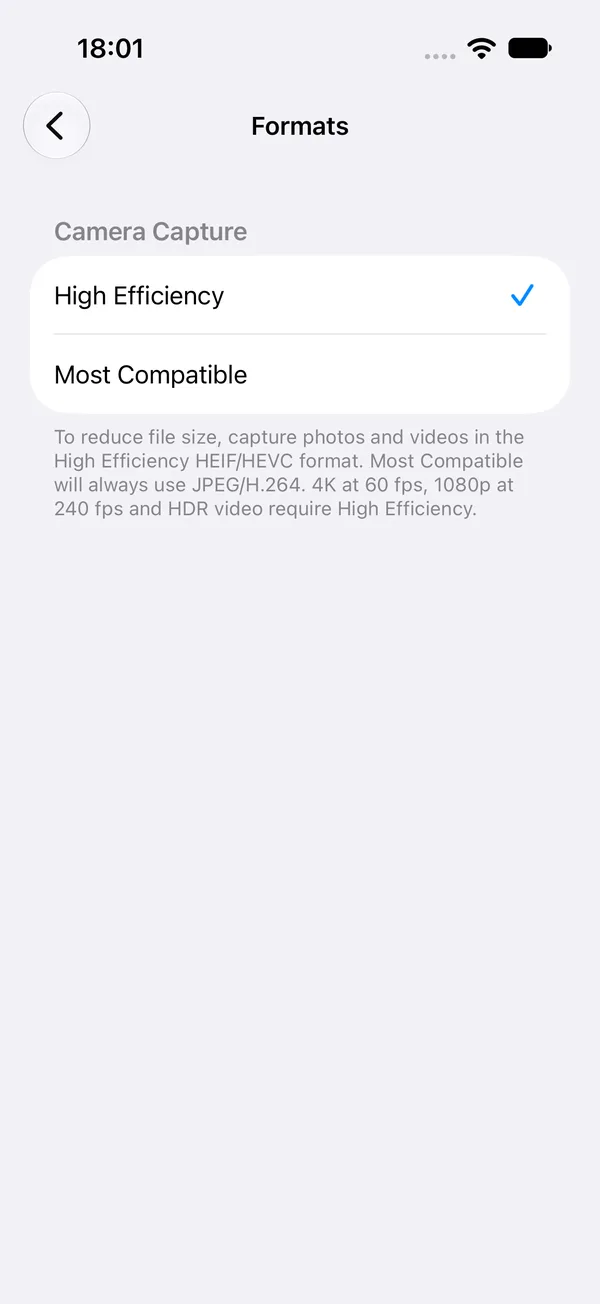
- Settings > Camera > Formats: choose High Efficiency. Photos are saved as HEIC and videos as HEVC, which take less space than the older formats.
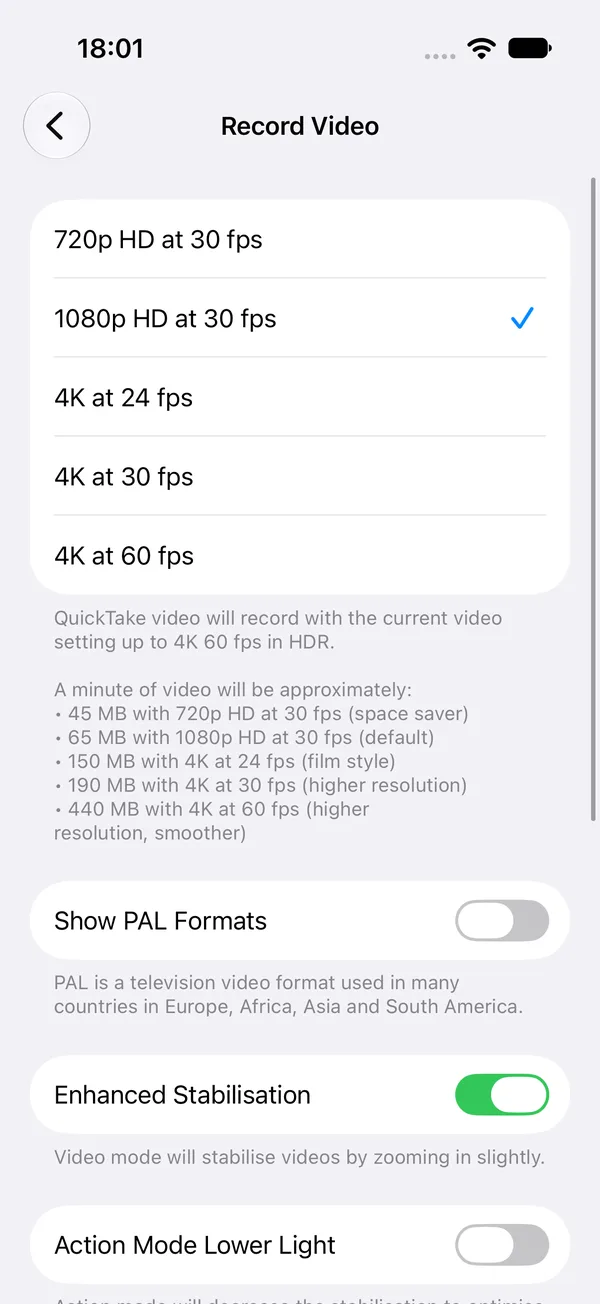
- Settings > Camera > Record Video: 4K at 60 fps takes far more space than 1080p at 30 fps. That screen shows roughly how much a minute of video takes at each setting. On iOS 27 it says about 65 MB a minute for 1080p HD at 30 fps and about 440 MB for 4K at 60 fps.
What about System Data?
System Data (shown in the iPhone Storage bar) is space iOS uses for things like caches, logs and temporary files. There's no button to clear it, and its size goes up and down as iOS manages it.
Apple doesn't say exactly what counts as System Data, so nothing here is guaranteed. These are safe things to try:
- Clear Safari website data (step 9).
- Trim your Messages history with Keep Messages (step 6).
- Restart your iPhone. It's harmless, and the storage screen sometimes shows a different figure afterwards.
- Leave it charging on Wi-Fi for a while. iOS does some of its housekeeping in the background.
The reliable way to make room is still to work through the steps above.
Questions people ask
How do I free up space on my iPhone without deleting anything?
Offload apps you don't use (their data stays), clear Safari website data, delete streaming downloads you've watched, and shrink large videos and photos to smaller copies instead of deleting them. Then empty Recently Deleted.
Why is Photos taking up so much storage?
Usually a handful of long videos, items still waiting in Recently Deleted, Live Photos (each one saves a short video too), and large 24 MP or 48 MP photos from newer iPhones.
How much free space does an iOS update need?
It depends on the update. The Software Update screen shows its size, and iOS needs extra room on top of that to install it. If there isn't enough, your iPhone tells you. Free up a little more than it asks for.
What should I delete first when my iPhone storage is full?
Start with your largest videos. They're usually the biggest files on the phone, so clearing a few of them is often the quickest win. Then do duplicates and similar shots, then screenshots.
Will deleting photos from my iPhone delete them from iCloud?
If iCloud Photos is turned on, yes. Deleting a photo on your iPhone deletes it from iCloud and your other devices. If you don't use iCloud Photos, the photo is only on your phone, so make sure you don't need it.
I deleted lots of photos. Why is my storage still full?
They're in Recently Deleted for 30 days. Empty it from Photos > Collections > Utilities > Recently Deleted, tap Select, tap the ... button, then Delete All.
Does offloading an app delete my data?
No. Offloading removes the app itself but keeps its documents and data. Reinstall it from the App Store and your data is still there.